Why dedupe a list at all?
Repeated entries sneak into lists all the time. You merge two exports and the overlap doubles. You collect emails from three sources and the same contact appears three times. You copy rows out of a spreadsheet and every cell drags a duplicate with it.
Duplicates cause real problems:
- Email campaigns send twice to the same person — and get flagged as spam.
- Reports and counts are wrong because the same SKU or URL is counted multiple times.
- Imports break when a database has a unique constraint and sees the same value twice.
- Mailing lists waste money because you pay per record, not per unique record.
Excel can do this with "Remove Duplicates" — but only if you already have Excel open, the data fits in one column, and you don't mind clicking through a dialog. For a one-off list of a few hundred lines, that's a lot of ceremony.
Paste your list into the Duplicate Line Remover, click once, copy the result. No spreadsheet, no formulas, no install.
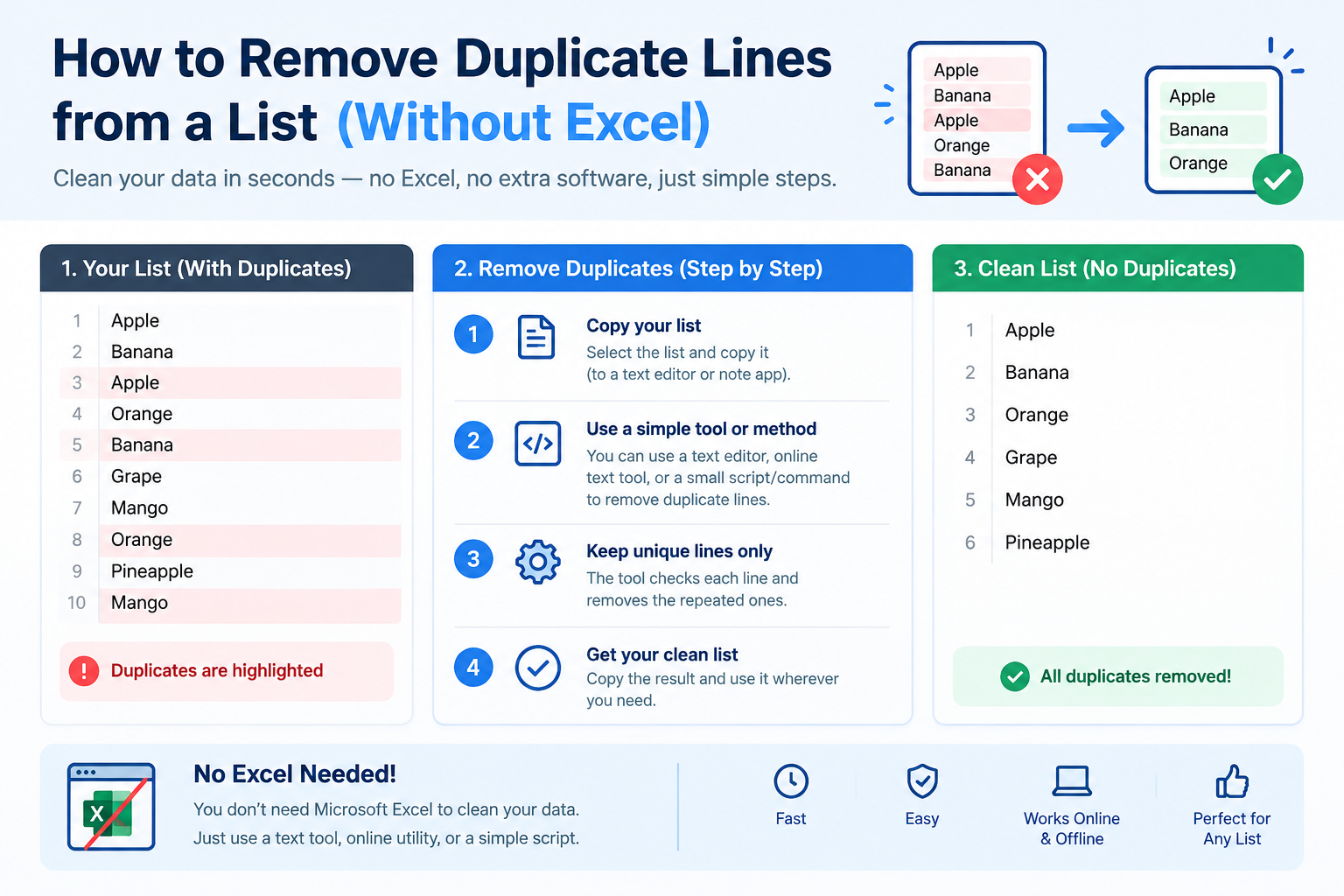
1 Paste your list
Open the Duplicate Line Remover and paste your list into the input box. Each item should be on its own line — emails, URLs, product codes, names, whatever you're deduping.
The tool works on one line at a time. So a list that looks like this:
alice@example.com
bob@example.com
alice@example.com
carol@example.com
bob@example.com
…will be reduced to three unique entries. If your list uses commas instead of line breaks, run it through the Line Break Converter first to split each item onto its own line.
2 Choose your matching options
Two options change how the tool decides what counts as a duplicate:
Case sensitivity
By default, matching is case-sensitive. Apple and apple are treated as different lines. If you're deduping email addresses, you usually want case-insensitive matching, because email providers treat them as the same address. Turn it on and both entries collapse into one.
Trim whitespace
Sometimes lines look identical but one has a trailing space or a tab at the start. Enable the trim option and the tool strips leading and trailing whitespace before comparing, so " hello" and "hello" are treated as the same line.
For emails and usernames: case-insensitive + trim. For product codes and URLs: case-sensitive + trim (URLs and SKUs can be case-sensitive). For plain prose lists: case-sensitive + trim.
3 Remove duplicates
Click the remove button. The tool walks through your list from top to bottom and keeps the first occurrence of each unique line. Everything after that is dropped.
alice@example.com
bob@example.com
alice@example.com
carol@example.com
bob@example.comalice@example.com
bob@example.com
carol@example.comThe original order is preserved — nothing gets reordered or sorted unless you ask for it. If you want a sorted unique list instead, run the result through a text editor or the Line Counter to check the final count.
4 Copy the clean list
Click the copy button and paste the deduped list wherever you need it: back into your email tool, your spreadsheet, your CMS, or your code. That's it — four steps, under a minute.
Duplicate Line RemoverPaste a list, get unique lines back in one click
Common cases (emails, URLs, SKUs)
Deduplicating an email list
Email addresses are case-insensitive in practice — Alice@example.com and alice@example.com go to the same inbox. Use case-insensitive + trim so both collapse into one. If you want to see which addresses appear more than once before removing, use the Duplicate Line Finder first.
Cleaning a URL list
URLs are usually case-sensitive in the path (but not the domain). If your list is all lowercase already, plain case-sensitive matching is fine. If you're not sure, leave it case-sensitive — it's safer to keep a duplicate than to merge two genuinely different URLs.
Product codes and SKUs
SKUs are almost always case-sensitive. Use case-sensitive + trim. This catches the common case where a trailing space snuck in during a paste.
Log file lines
If you're deduping log lines, use case-sensitive matching. Two log lines that differ only in case are usually different events. Trim whitespace to handle inconsistent leading/trailing formatting.
Duplicate words within a sentence
If the problem isn't whole lines but repeated words inside a sentence — like "the the" or "and and" — that's a different tool. Use the Remove Duplicate Words tool instead.
How it compares to Excel and command line
Excel works, and the command line works, but both have trade-offs depending on what you're actually doing.
| Method | Best for | Downside |
|---|---|---|
| Excel "Remove Duplicates" | Lists already in a spreadsheet, repeated regularly | Requires Excel, single-column data, several clicks. Can't handle emails with leading spaces unless you clean them first. |
Command line (sort -u) |
Huge files, scripted workflows, developers | Reorders the list (unless piped through a helper), not available on every OS, unfriendly if you don't use a terminal. |
| Duplicate Line Remover | One-off deduping, any list size, any device | Runs in your browser — requires a browser. No file upload (a feature, not a bug). |
The Duplicate Line Remover's biggest advantage is that it preserves the original order. Excel's "Remove Duplicates" and sort -u both reorder the list — Excel keeps the first occurrence but compacts the range, and sort -u sorts alphabetically. If your list order matters (log lines, priority queues, ranked lists), preserving order is worth a lot.
If you have a list of several thousand lines and you need to know exactly which values appear more than once (not just get the unique set), use the Duplicate Line Finder. It groups each duplicate with a count, so you can spot patterns.
The dedupe checklist
- Split into lines. One item per line. Use the Line Break Converter if your data is comma-separated.
- Choose case sensitivity. Case-insensitive for emails, case-sensitive for SKUs and URLs.
- Enable trim. Catches the invisible whitespace problem.
- Click remove. Keeps the first occurrence, preserves order.
- Verify the count. Use the Line Counter to confirm the before/after numbers.
- Copy. Paste the clean list wherever it's needed.
That's the entire workflow. No Excel, no formulas, no install, and no data leaving your browser.
Frequently asked questions
Does the Duplicate Line Remover preserve the original order?
Is matching case-sensitive?
Apple and apple are treated as different lines. You can enable case-insensitive matching if you want them collapsed into one entry.Are lines with extra spaces treated as duplicates?
" hello" and "hello" are treated as different. Enable the trim option to strip leading and trailing whitespace before comparing, so they collapse into one.