Why copied text gets messy
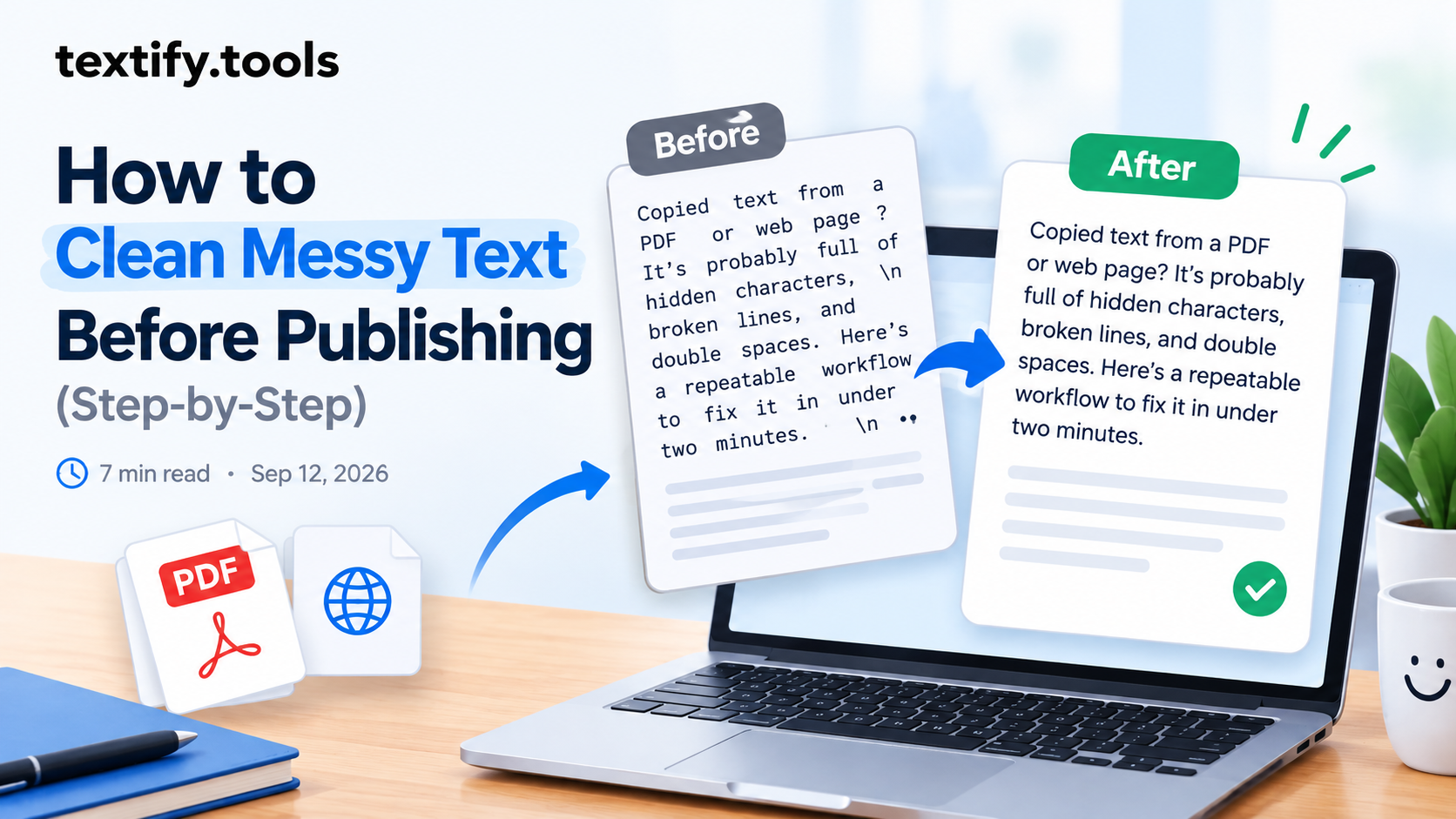
When you copy text from a PDF, a web page, or a Word document, you're not just copying the letters you see. You're also copying the invisible scaffolding behind them: soft returns, non-breaking spaces, zero-width characters, curly quotes, and sometimes hidden HTML tags.
That's why pasted text often looks fine at a glance — and then breaks the moment you paste it somewhere else. Your word count is off, your paragraphs collapse into one giant block, or a search-and-replace mysteriously fails because the "space" you copied is actually a non-breaking space that doesn't match a regular one.
You don't need to understand every hidden character. You just need a repeatable order of operations. Follow the six steps below, and you'll clean almost any messy paste in under two minutes.
Step 1: Paste into a plain-text editor first
Before you touch anything else, paste your text into a plain-text environment. This strips most of the visible formatting — fonts, bold, italics, colours, links — in one go.
On Windows, Notepad is perfect. On macOS, use TextEdit in plain-text mode (Format → Make Plain Text). You can also paste directly into the Text Cleaner on Textify.tools, which does the same thing and gives you a clean canvas to work from.
If you paste into a rich-text editor like Google Docs or Microsoft Word, you'll be fighting formatting the whole way. Start plain. It saves time later.
Step 2: Remove extra spaces and tabs
Copied text almost always has too many spaces. Double spaces after sentences, triple spaces between words, tabs where a single space would do — they all add up and make the text harder to read and harder to process.
Run the Remove Extra Spaces tool on your text. It collapses runs of spaces into a single space and cleans up the most common spacing problems in one click.
Remove Extra SpacesCollapse double spaces, tabs, and stray whitespace
Step 3: Fix broken line breaks
PDFs are the worst offenders here. Because PDFs are designed for print, not for text editing, every line break in a PDF is treated as a hard return. Copy a paragraph out of a PDF, and you get a paragraph that's broken into ten tiny lines.
Use the Remove Line Breaks tool to join those broken lines back into proper paragraphs. It removes the artificial breaks while keeping the ones that actually matter (the paragraph breaks).
Remove Line BreaksJoin broken lines back into flowing paragraphs
If your text has the opposite problem — no breaks at all — the Wrap Text tool can add line breaks at a width you choose, which is handy when you're preparing text for a fixed-width field or a plain-text email.
Step 4: Delete empty lines
After you fix the line breaks, you'll usually find a pile of empty lines where the original formatting left gaps. These blank lines are a common source of "why does this look wrong?" moments, especially when you paste into a form or a CMS that counts every line.
Run the Remove Empty Lines tool to delete every blank line in one pass. Your text will be tighter and easier to scan.
Remove Empty LinesDelete blank lines instantly
Step 5: Strip invisible characters
This is the step most people skip — and it's the one that causes the weirdest problems. Invisible characters like zero-width spaces, soft hyphens, and non-breaking spaces can survive every other cleanup step and still break your text later.
The symptoms are familiar: a word that refuses to spell-check correctly, a search that fails even though the text looks identical, or a form that rejects your input because of a "character" you can't see.
Run the Remove Blank Characters tool to strip them all out. It removes the invisible junk without touching the characters you actually want to keep.
Remove Blank CharactersStrip zero-width spaces, soft hyphens, and invisible junk
Step 6: Run the all-in-one Text Cleaner
If you want to skip the individual steps and just get a clean result, the Text Cleaner runs the whole pipeline for you: extra spaces, line breaks, empty lines, invisible characters, and a few more passes you probably haven't thought about.
It's the fastest option when you're in a hurry and don't want to think about the order of operations. Paste, click, copy. Done.
Text CleanerAll-in-one cleaning — spaces, lines, blanks, and more
The 60-second checklist
Here's the whole workflow in one place. Bookmark this page and run through it the next time you paste something messy.
- Paste into plain text. Notepad, TextEdit (plain mode), or the Text Cleaner.
- Remove extra spaces. Collapse double spaces and tabs.
- Fix line breaks. Join broken lines back into paragraphs.
- Delete empty lines. Remove the blank gaps left behind.
- Strip invisible characters. Remove zero-width spaces and soft hyphens.
- Do a final read. Scan the text once with your own eyes — tools catch patterns, you catch meaning.
That's it. Six steps, about sixty seconds, and your text is ready to publish, send, or paste into whatever system you're using.
Cleaning tools fix formatting, not meaning. After the automated passes, read the text once — ideally out loud. It's the fastest way to catch a sentence that got mangled when the line breaks were removed, or a word that got joined to the next one.